Profile Management
User Information
You have the option to edit your information by selecting .
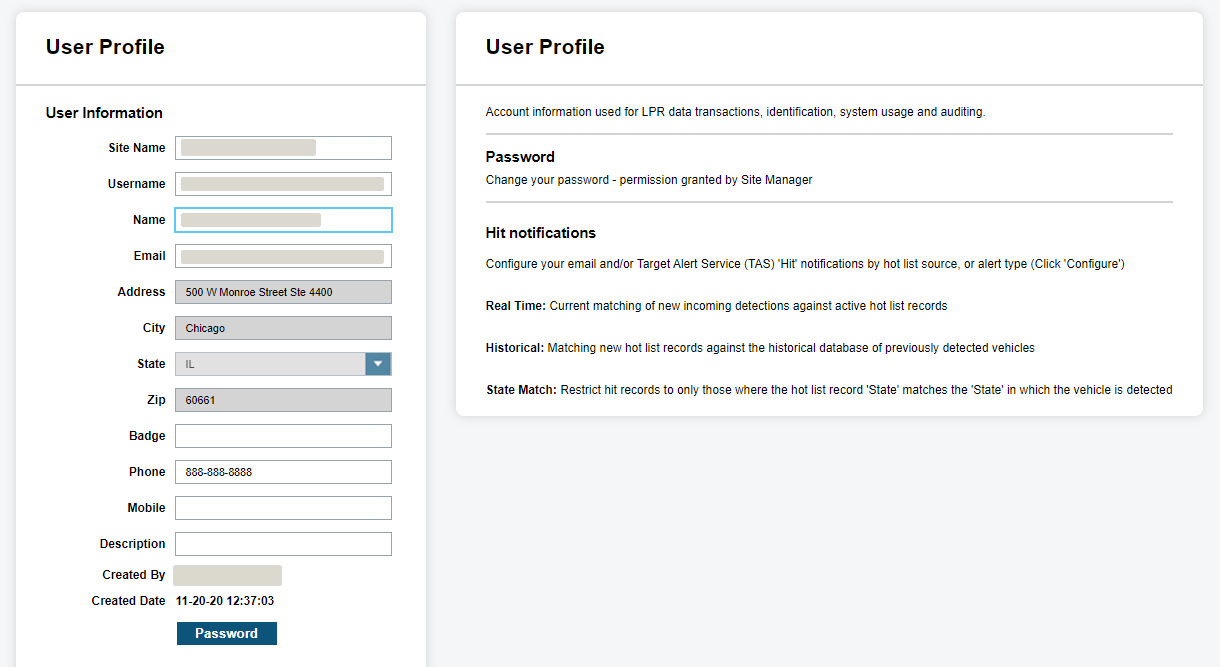
You can change the password within My Profile section if allowed by the manager. After making changes, select Update and Close to return to the landing page.
Alert Management
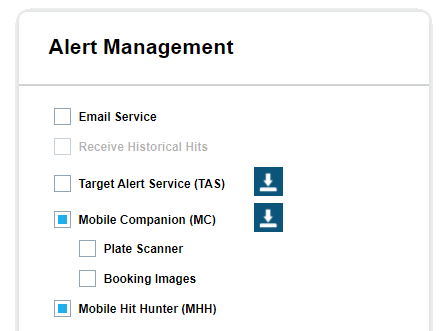
You can configure their Alert Management options if allowed by the manager. There are three main alerts allowed through Alert Management which consist of Email Service, Target Alert Service (TAS), and Mobile Companion (MC). A fourth alerting feature, Mobile Hit Hunter (MHH) can also be configured when applicable for the CarDetector Mobile System.
When configuring Email Service, you have the option to receive Historical Hit alerts. These alerts are received when a Hot List is loaded after a scan has been made and the option is selected to create historical hits on Hot List load.
Target Alert Service allows you to instantly receive alerts at their terminal, similar to the Vigilant CarDetector alert screen. This tool allows for fast response to alerts in a real-time alerting environment. There is an option to download this tool and connect to the System Server. See Software Downloads for more information.
Mobile Companion is also configured in the Alert Management section, and when bridged with an NVLS account, can be used as a Mobile Companion on smartphone devices. There is an option to download this tool based on the type of smartphone (Android or iOS).
Mobile Hit Hunter (MHH) allows the consumption of NVLS Contributed Data within Vigilant CarDetector Mobile. The system has the ability to turn on/off alerts for MHH as needed through the Filter Alerts section.
Filter Alerts
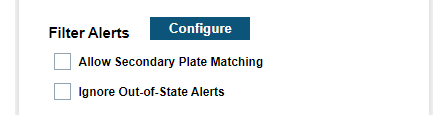
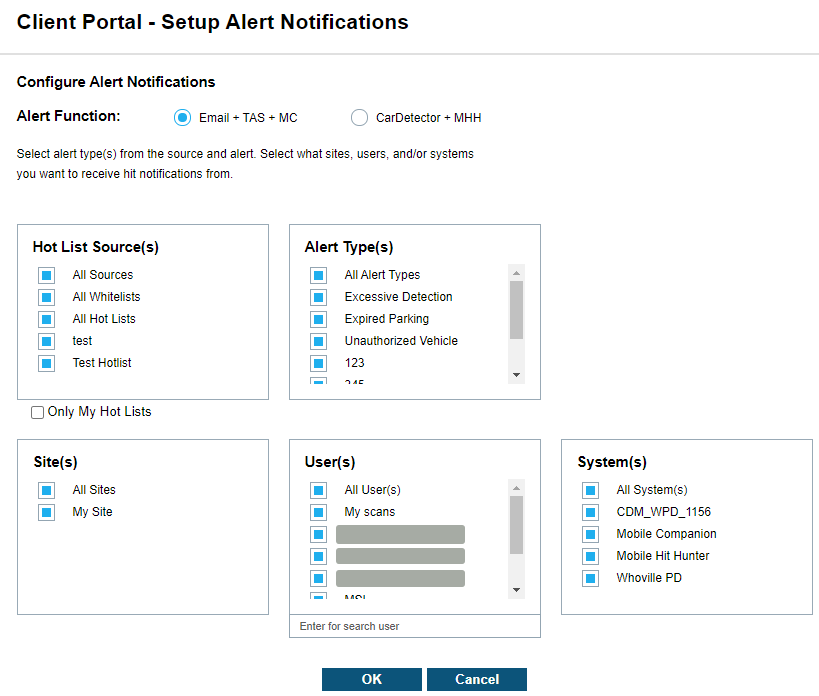
The Filter Alerts section allows you to configure individual alerts based on Hot List Source, Alert Type, Site, Users, and/or Systems when allowed by your Site Manager. You may disable these options to discontinue Hit Notifications for the services that you have selected (Email, TAS, MC, MHH). This prevents unwanted notifications and allows you to filter their alerts according to their preferences.
Within the Filter Alerts section, you also have the option to Allow Secondary Plate Matching. This feature allows for the alerting on secondary OCR reads from the ALPR systems. Since we store two reads for each scan if the confidence of the first read is low, this allows for increased alerting on hard to read plates.
There is also the option to Ignore Out-of-State Alerts as it pertains to the Hot List. Each Hot List consists of a State ID that is abbreviated to two characters. If the GPS location of the scan is outside the State ID listed in the Hot List, you will not be notified. Note: In the case of CarDetector Fixed units, which may not have GPS readings, you will want to disable this option (default is unselected).
Geographic Zoning
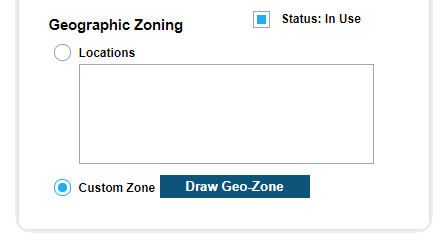
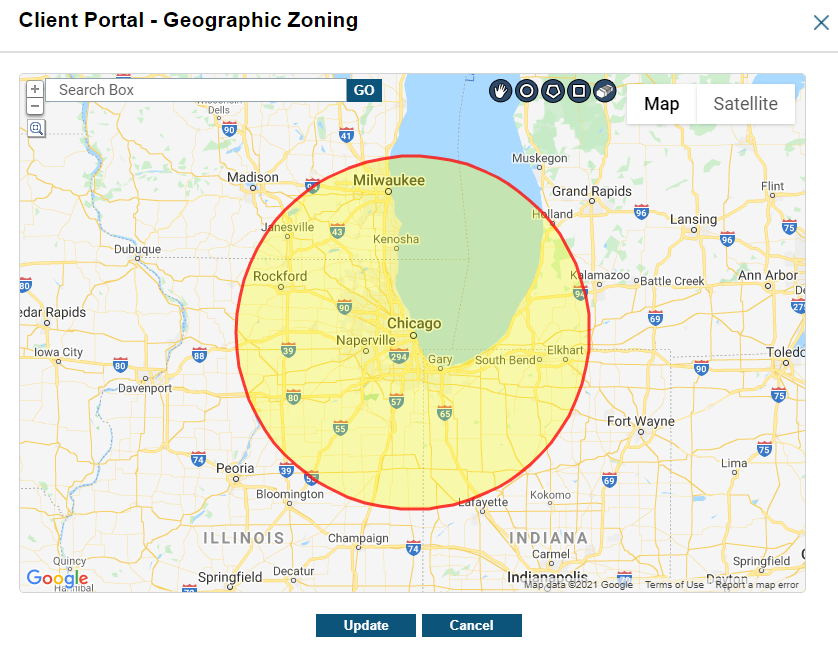
The final section for Alert Management is the option to filter by Geographic Zoning. This allows you to define the exact perimeter notification. To use the polygon drawing tool, use the Google Map zooming tools in upper left corner to zoom-in on region to select. Next, select the Pen icon in lower left corner to begin polygon creation. Generate polygon selection by Left-clicking on the map with at least three points. To reset the zone, click Clear, and draw again. You can add multiple zones by clicking Add. Click Save to save the zone and click Update.
Icon Favorites
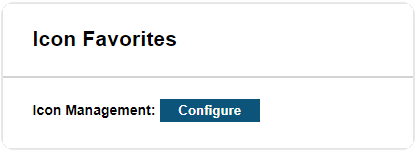
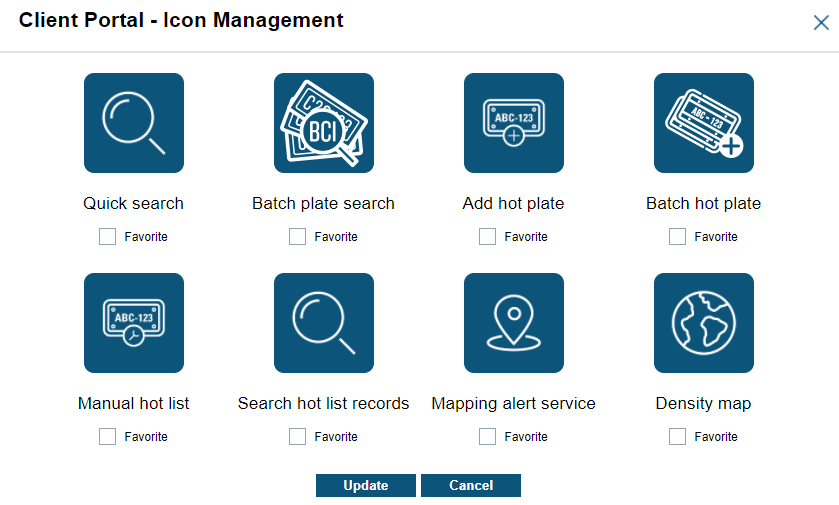
Icon Favorites allows you to set up three icons for their homepage. These icons will be a direct link to the frequently used features. When you select Configure, you will be represented with the Icon Management screen. You can select Favorite box to define which feature will be displayed on the home screen.