License Plate Query
To search a license plate, go to .
Quick Search
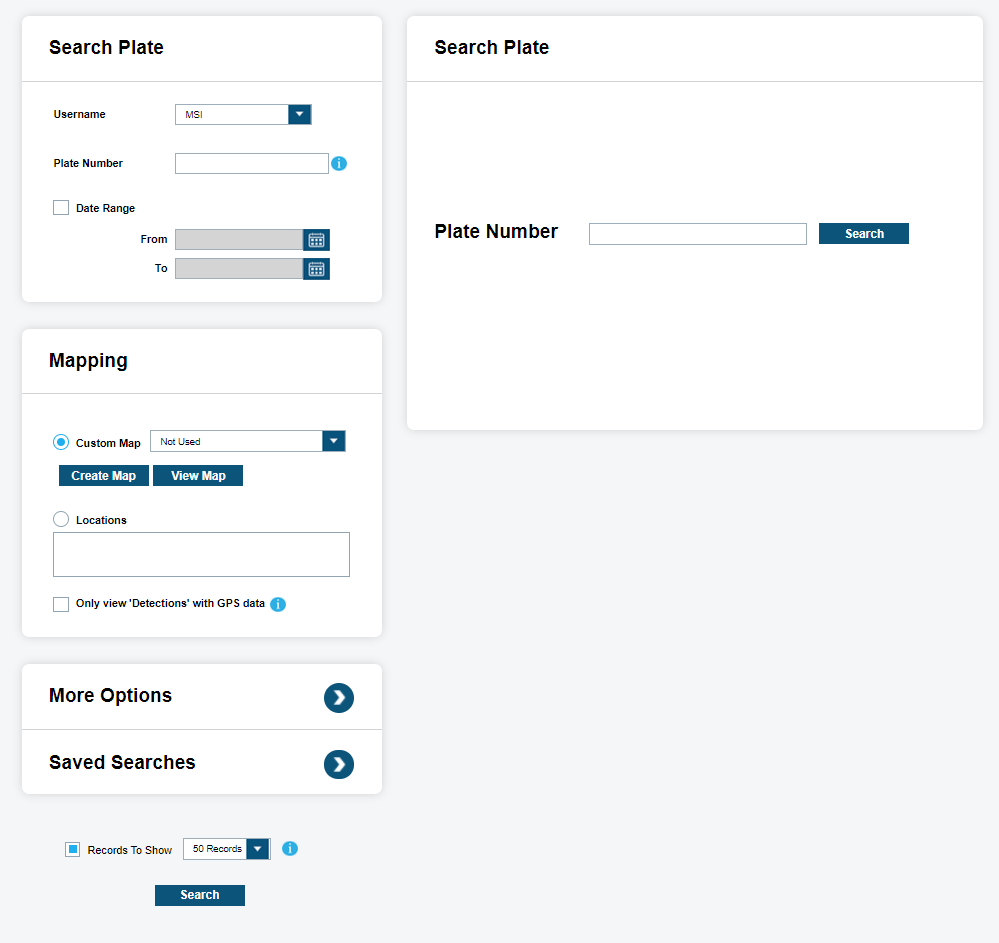
This feature allows you to do a Quick Search of all detections within you detection data pool. You will have the option to enter a plate number, or the user can leave blank and all detections will return. You also will have the option to select a specific date range. If selecting a date range, you will be prompted to select a date range by using the Calendar tool. You can also quickly select a predefined map or create their own.
When entering a plate number within the plate number area, you can use one of the wildcard options to expand the search results. The following wildcards are available:
| Wildcard Symbol | Description |
|---|---|
| * | Allows any character replacements up to seven characters |
| @ | Replaces any single alpha character |
| # | Replaces any single numeric character |
| […] | Allows multiple cases within the brackets. For example, [38B] indicates any combination of the numbers 3, 8, and B, which it might be one of the following:
|
You can also specify the number of records to return using the Records To Show option. When selected, the last selected records to show are returned from the filters selected. If unselected, all records will be returned from the filters selected.
Create Map
You can optionally define a Geo Zone map to restrict the user search to detections within a certain area. Select Create Map to define a Geo Zone.
To use the polygon drawing tool, use the Google Map zooming tools in upper left corner to zoom-in on region to select. Next, select the Pen icon in lower left corner to begin polygon creation. Generate polygon selection by Left-clicking on the map with at least three points. To reset the zone, click Clear, and draw again. You can add multiple zones by clicking Add. Select Finish to use the map for a single query, or Save to have the same Geo Zone available for future searches. You will be prompted to enter a <Map Name>. Click Save again and you will now have this map available in the drop-down menu for future queries.
View and Edit Map
To Edit the map, simply select map in drop-down and select View Map. Make edits or changes and click Save.
Instead of using a geo zone, a predefined location can be selected. Click the Locations radio button to search for plates from within selected predefined White List or hot-list locations.
You can limit detections to only GPS by selecting the Only View Detections With Gps Data option.
More Options
To alter individual Data Sources with exact filters, select More Options.
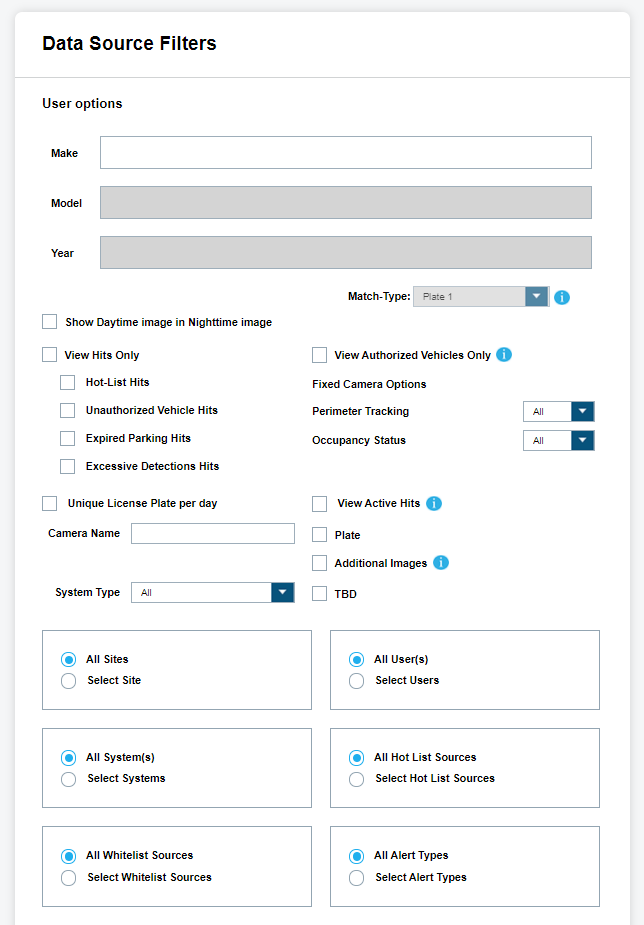
If you are missing the CarDetector Fixed scans, this can be used as many fixed scans are without GPS. We also have the option to view only the hit list with the Hits Only option.
When entering a plate number, we can also limit the matching type to a Single OCR or to both First and Secondary OCR reads, using the Match-Type option. When the Vigilant CarDetector software scans a plate, it uses an Optical Character Recognition (OCR) to identify the characters. We can attempt two OCR reads per plate capture. The secondary read is considered Plate 2 and can sometimes be helpful when searching for harder to read plates, which the default is Plate 1.
When querying the results, you can filter by the following:
- Site
- User
- System
- Hot List Source
- White List Source
- Alert Type
For the Site filter, you will be given a list of each site that the you have accepted shares from, the users own site (My site), and Commercial Data, if the users site subscribes to it. When unselecting a site, their corresponding users and systems will be removed from the list options.
The User list will consist of all the users from the sites selected. Likewise, the System list will consist of all the systems from the sites selected. To narrow down the results by user or by system, simply unselect the All User(s) or All System(s) check box and select the individual users and systems.
For the hits that are generated, we are able to filter them out by Hot List Source and Alert Type. With the Hot List Source, we can turn on or off individual sources that have been assigned to the users. With the Alert Types, we can turn on or off individual sources that have been assigned to you. When Sources and Alerts are filtered out, they will instead appear as traditional detections. If the Hits Only option is selected, the entire hit will be absent if the corresponding Hot List Source and Alert Type for that hit are unchecked.
When the View Authorized Vehicles Only check box is selected, only the vehicles that were authorized on a White List at the time of scan will be displayed. We can then view the Whitelist sources that allowed the vehicle to be authorized in the search results. Click the Map It button to view the locations of the White Listed vehicles. You are able to see where permitted parkers are parking based on permit type with a query of license plates.
When the Unique License Plate Per Day check box is selected only unique license plates (unique to the day of detection) will be returned, instead of all detections matching the search options. You are able to view the exact number of vehicles in parking violation and not just the total number of hits, which often contain more than one of one license plate.
For sites that have Year/Make/Model permissions enabled, you can specify the make, model, and year of a vehicle filter in the search results with the Make, Model, Year drop down menus. To select a model or year, first select the make and the subsequent model and year menus will populate.
When the View Active Hits check box is selected, only license plates records with the No Action Taken attribute from Car Detector Mobile will be returned. The Action Taken field can be added to the search results with the Customize View button to view the status of license plate detections.
Save Searches
When you query a plate and return results, you will see the option to Save Search. When selected, you will be given the option to enter the Search Name and Subject name for future queries. You can use it in the future by selecting Saved Searches.
Within the Saved Searches table, you will see a list of all the searches that have been saved. You can edit them by highlighting the individual saved search and select Edit. Likewise, you can delete them by highlighting the individual saved search and select Delete. To execute the saved search, click Search Name. You should see that the searched name become underlined when you hover over it.
Search Results
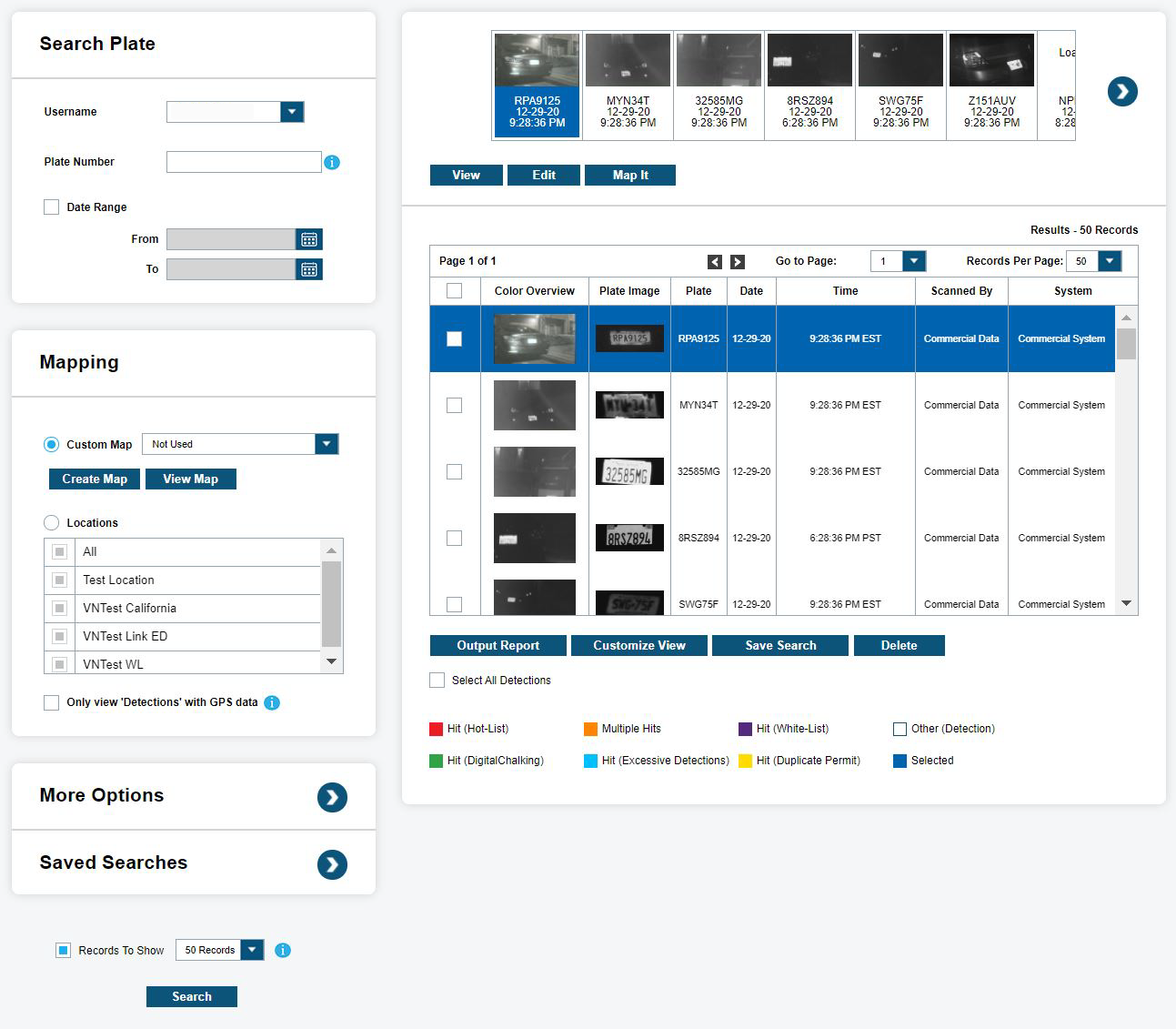
When the search is returned, it will come back with multiple elements to assist in processing the results. The results consist of a film strip tool that allows you to visualize the scans in the order that is portrayed in the table. Red signifies that a hit was created, and blue signifies that no hit was created. The bright red and blue signifies that the record is currently highlighted. From the following figure, it is possible for a Hot List record not to generate a hit on every detection record matching. In this case, it depends on when the Hot List was loaded and whether you-selected Historical hit generation.
Site Managers have the access to the Delete button, which gives the function to select and delete individual license plate detections. This allows detections to be deleted based on White List and digital chalking search results
Customize View
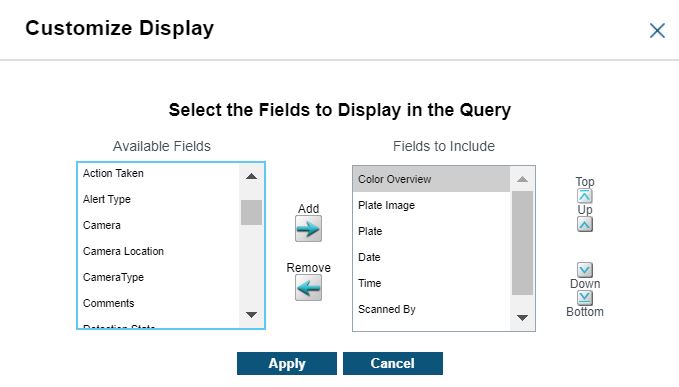
By default, the results table will display the following:
- Color Overview
- Plate Image
- Plate
- Date
- Time
- Scanned By
- System
You can reorder the plates by selecting the headers at the top. For example, you can select the Date or Time filters and order in descending or ascending order. You can also customize the view by selecting the Customize View option. This will bring up a customization tool to add and remove columns to display. You can also change the order in which you display them.
When hovering over the Plate column, you will be presented with a large bubble pop-up that displays the color overview in greater detail. If you wish to zoom further, the user will need to select the record and click View.
When you highlight a selected record and choose View, you will be presented with a Detailed Record information. Depending on if the record is detection or hit, you will receive a hit Record Detail or a detection Record Detail. Both will display the option to Edit the detection if allowed. Both will display the Map It and Show Address options to display location of the detection. Also, both types of Details will allow you to select Output Report. Lastly, both will display the detection Data and the ability to enter a commit for the record using the Add Comment feature.
Detection Data
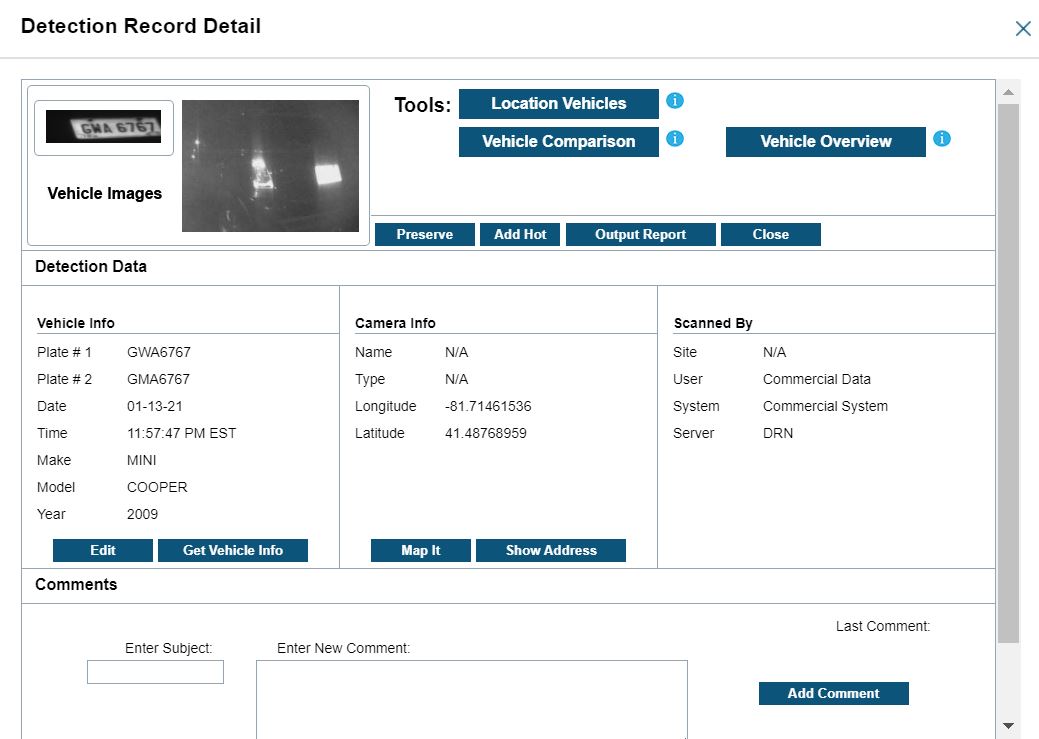
Detection Data includes the following information:
- Vehicle Info: (Plate Number, Date of Scan, and Time of Scan)
- Camera Info: (Name of Camera, Type of Camera, Longitude, and Latitude)
- Scanned By: (Site, User, System, and Server)
When you selects Edit, an enlarged IR image of the plate is displayed with dialog box to Update the plate number. Once a plate number is updated, it will be determined if a hit record should be created for the edited plate.
When entering comments, user must enter a <Subject Title>, and the comment. When finished, you must select Add Comment and the record will have a permanent comment appended to the record. The previous comments can then be expanded by selecting +.
To to map the vehicle, select Map It and a large map overview of the scan is displayed with the Vehicle Data, Scan Data, and Scanned By information to the right of the map. Also, in the case of the detection being a hit, they will also see the following Hot List Information:
- Order Number
- Hot Plate
- VIN
- States
- Order Date
- Vehicle Make
- Vehicle Model
As with the previous view, you have the option to Output Report and/or Show Address.
If you selects Show Address, they will be presented with a pop-up that displays the Nearest Address and Nearest Intersection. The pop-up will also display the approximate distance to the address. If you selects Output Report, they will be presented with a Single PDF Report and you choose a location to store the PDF.
Reports
The type of report that is generated depends on whether the scan is a detection record or hit record. For hit Records, you will see the following on the Detail Info pop-up.
The Hot List Data displays the following information:
- Alarm: Hot Plate, Alert, State, and Type of hit
- Record Detail: Record ID, Date of Load, Source, VIN, Owner, Vehicle Year, Make, Model, and Color
If a hit record is saved you will be presented with the following Vehicle Hit Report when you click Output Report. Likewise, you will be presented with the following Vehicle detection Report for regular Detections.
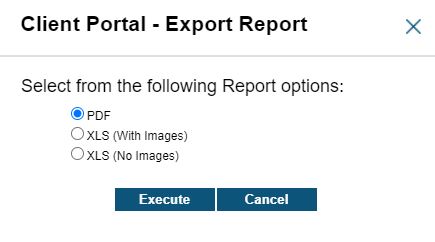
When outside the View Detail pop-up, you will be presented with the following options when selecting Output Report.
- A Single Report – PDF. Saves the report of a single record selected to a PDF file.
- A Single Report – PDF (All Selected). Saves multiple records selected with checkmarks to a single PDF file. Each will have their own Single Report pages.
- Multi Report – PDF. Saves multiple records selected with checkmarks to multiple PDF files.
- Multi-Report – XLS. Saves multiple records selected to an excel file.
- Multi-Report – XLS (No Images). Saves multiple records selected to an excel file when the results selected are greater than 300.
Associate Analysis
This feature allows you to select multiple detections of a known plate to determine if there are other license plate commonly seen near the known plate. When selecting plates of interest and then clicking on Associate Analysis, you will be presented with the Analyze with Stakeout pop-up box that allows you to alter their desired selections.
The following information is displayed:
- Plate Record #
- As seen in the main table and will be presented with the Plate read.
- Time From and Time To
- Control how far before and after the scan to look for an Associate plate. By default, the times are 12 hours before and 12 hours after the time of the detection.
- Infrared Plate and Color Overview Scan
- Each scan will have a separate location even if they overlap.
- Map
- A map will be presented with the ability to hover over the images and map for a large view. When you click on the map, you will be presented with closest address at the bottom of map to help determine if this is the desired location.
- Location Type
- An indicator to the location of the scan can be one of the following: Residential, Retail Area or Public Place, or Mixed Residential.