Auditing
You can print the single query from the Auditing using the Output Report, or check box each record desired in the table and select Output Report. When you receive the Print Preview, you will be presented with the default options for Crystal Reports. This includes page navigation, Export, Print, and Show/Hide Group Tree. When selecting Export, you will have the option to export to a specific format. The formats include RPT, PDF, MS Word, MS Excel, or RTF. You will also have the option to save all or specific pages.
Track All Transactions
To view the audits for queried records, select . You will be presented with an empty table and the filters to define the Audit Search. The filters include the followings:
- Start/End Date
- Last Time (hours)
- Last Records
- Users
- Audit Type
- Case Number
- Requestor
- IP Address
For Audit Type, you can select a vast array of types of queries that have been run by users including Browsing, Sharing, and Reporting.
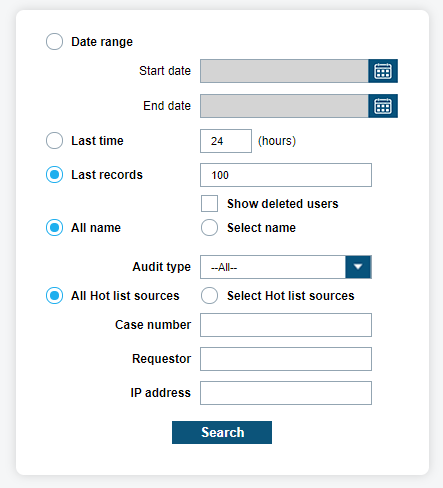
Once the desired filters have been selected, select Search and you will be presented with the following:
- Query Type
- Username
- User Type
- Case Number
- Requestor
- Date/Time
- IP Address
The data will be displayed in chronological order. To gain more knowledge from the query, select Info next to each record. All the information in the table, plus the addition of Query Pars and Reason is displayed in the info pop-up box.
Query Viewed Records
To view the audits for All Transactions, select . You will be presented with an empty table and the filters to define the Audit Search. The filters include the following:
- Date Range
- Last Time (hours)
- Last Records
- Plate ID
- Users
- Query Type
- Case Number
- Requestor
- IP Address
For Query Type, you can select a vast array of types of queries that have been run by users; this includes Plate Update, Detection Browsing, hit-list Browsing, Hot List Browsing, and Query Plate. This portion of Audits is different from Query Viewed Records portion, which covers a broad audit. This section covers transactional audits.
Once the desired filters have been selected, select Search and you will be presented with the following:
- Query Type
- Username
- User Type
- Case Number
- Requestor
- Date/Time
- IP Address
The data will be displayed in chronological order. To gain more knowledge from the query, select Info next to each record. All the information in the table, plus the addition of Query Pars and Reason is displayed in the info pop-up box. The Query Pars field will list the query parameters that were entered at the time of the query.
Login Tracking
When reviewing login attempts, select either All Time, Start/End Date, Name, or Status options.
By selecting All Time or Date, you can define a period when login occurred. Also, you can select an individual Name to determine their login tables. To select a series of names, use Control button to select multiple users. The Status drop box will allow for Login, Logout, or Session Ended. The system tracks when users successfully Log In and when they select Log Out. The system also tracks when a user session has expired and state this as Session Ended. This can occur if user stays logged in too long or exits without selecting Log Out.
Once the desired filters have been selected, select Search and you will be presented with the following:
- Username
- Status
- Date/Time
- Source IP Address